
Writing a draft in the Content Studio
Three ways to start a draft in the Fynch Content Studio: a step-by-step wizard, a voice interview, or a brain dump of your rough notes.
Select Write in the left menu to open the Content Studio. Then pick one of three ways to start, depending on how much you already know about what you want to say. Each one turns your input into a first draft that you can edit and grade.
Which way to start
| Option | Best when | How it works |
|---|---|---|
| Guided Wizard | You're new to Fynch, or want structure | Three short steps: pick a format, add your topic, then generate |
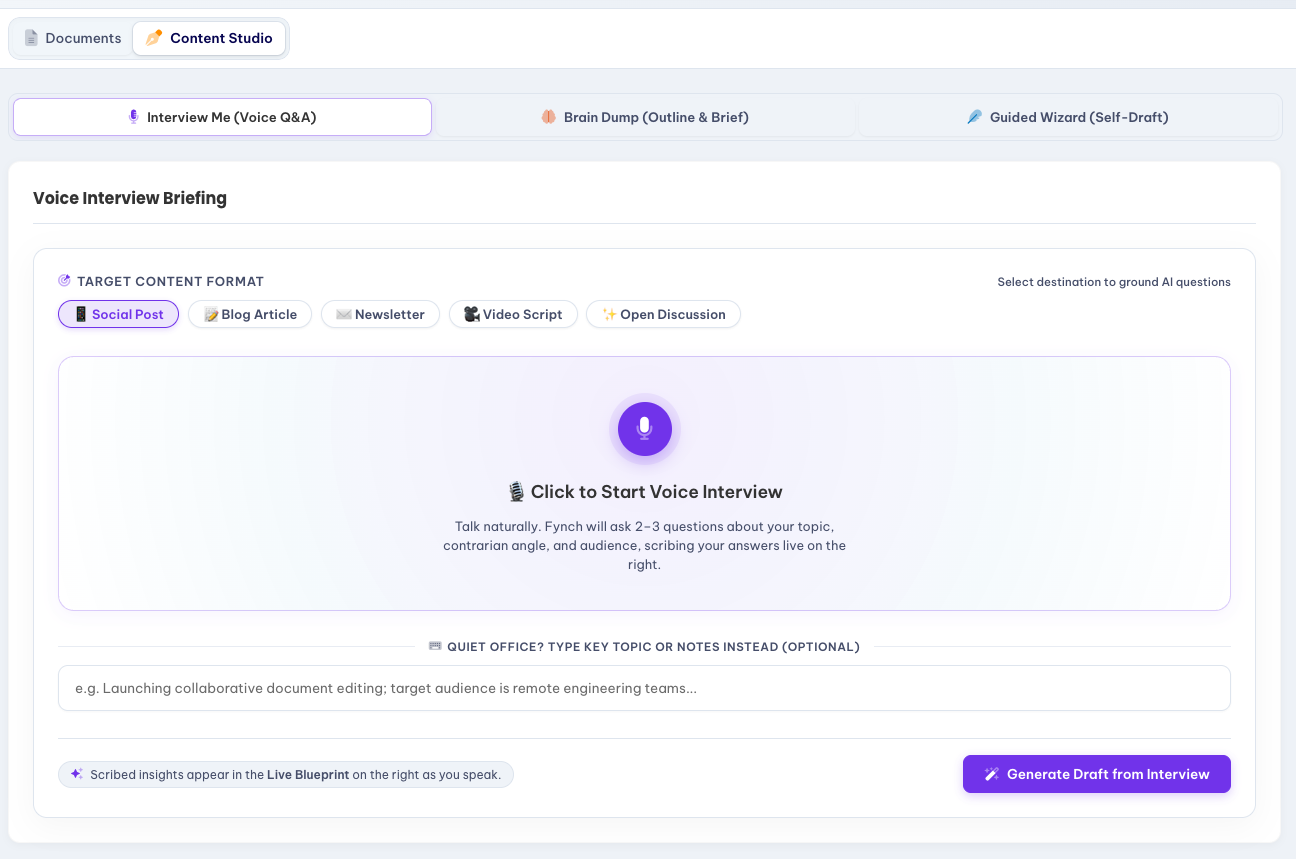
| Interview Me | You know your topic but haven't written anything yet | Fynch asks you 2–3+ questions out loud and drafts from your answers |
| Brain Dump | You have rough notes or ideas in your head | Paste or dictate messy thoughts, and Fynch turns them into an outline and draft |
Guided Wizard
- Open Guided Wizard (marked Start here).
- Choose your format, or leave it on Auto-Detect Format. For case studies, ad copy and other specific formats, select Browse Blueprints to pick from templates.
- Select Next Step and follow the prompts to generate your draft.
Interview Me
- Open Interview Me and pick a format: Social Post, Blog Article, Newsletter, Video Script or Open Discussion.
- Select the microphone to start. Fynch will ask about your topic, your angle and your audience. Can't talk right now? Type your topic or notes in the box below instead.
- Select Generate Draft from Interview.
Brain Dump
- Open Brain Dump.
- Type or paste your notes into Messy Thoughts, or select Dictate to talk them out.
- Fill in Topic / Industry Context, such as
local coffee shoporB2B software founders. - Select Generate Outline & Open Draft.
The Draft Blueprint
The panel on the right shows what Fynch will use to write your draft: your topic, audience and brand voice. If it says No Specific Brand Voice, your draft will use a general tone. Setting up your brand voice →
After your first draft
Your draft opens in the editor, where it's graded for slop as you work. Use the AI chat panel beside the draft to research, check facts or ask for edits. You can also ask for inline AI suggestions for precision tweaks by phrase or section. When it's ready, you can tag teammates for comments, email yourself the latest version, or share the document link.