
Last verified Oct 7, 2026
Adding fixes to your site
Copy the schema, meta tags and answer-first copy from your Fynch report into WordPress, Webflow, Shopify, Squarespace or Wix. No coding needed.
Open the Technical & Schema Diagnostics view of your report, copy the code from Ready-to-Paste Code Remediations, and add it to your page in your website builder. You don't need a developer. If you'd rather hand it off, you can also email the whole fix package to whoever manages your site.
Before you start
- A report for the page you want to fix. Each page gets its own code. Run a free AI Search audit →
- A free trial or paid plan. Select Unlock Ready-to-Paste Code to start your free trial (no credit card).
- Access to edit your website.
The three fixes
| Tab | What it is | Where it goes |
|---|---|---|
| JSON-LD Schema | Hidden labels that tell AI tools facts about your business | Inside your page's <head> code |
| Meta Tags | The title and description shown in Google and AI results | Your page's SEO settings |
| Hero Hook | A rewritten, answer-first opening line for your page | The first heading or paragraph on your page |
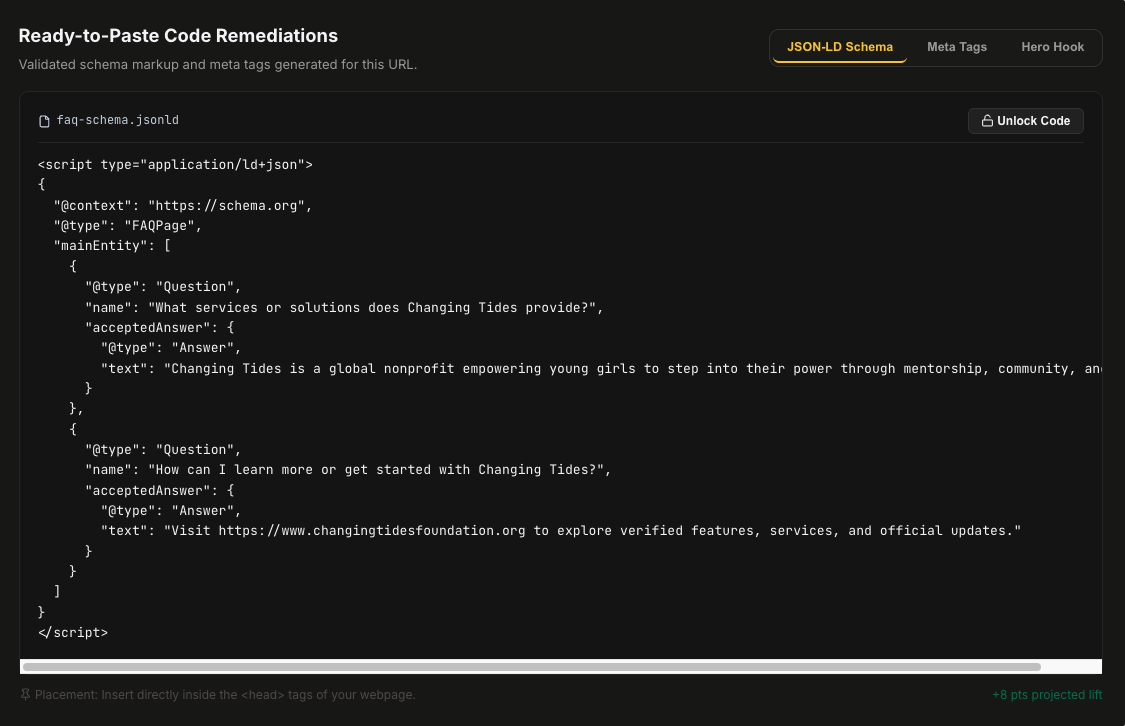
Steps
- In your report, switch to Technical & Schema Diagnostics.
- Scroll to Ready-to-Paste Code Remediations and open a tab.
- Copy the code or copy.
- Paste it into the right place in your website builder (see below).
- Publish your changes, then select Re-test Live in your report to confirm they're working.
Where to paste it in your website builder
| Builder | Title and description | Schema (head code) |
|---|---|---|
| WordPress | Your SEO plugin, such as Yoast or Rank Math | A header code plugin, such as WPCode |
| Webflow | Page settings → SEO settings | Page settings → Custom code → Inside head tag |
| Shopify | The page's Search engine listing section | Themes → Edit code → theme.liquid, just before </head> |
| Squarespace | Page settings → SEO | Page settings → Advanced → Page header code injection |
| Wix | Page settings → SEO basics | Page SEO → Advanced → Structured data markup |
Website builders update their menus often. If you can't find a setting, search your builder's help center for add code to head or SEO title.
Don't want to touch code?
Select Email Webmaster to send the fix package to your web developer or agency, or Copy Briefing (Markdown) to paste it into a message or task.