
Execution Mode: Chat vs. Background
FynchAI offers two ways to handle your marketing requests: Chat Mode and Background Mode. Understanding the difference ensures you use the platform efficiently, getting immediate answers when you need them and letting the AI handle heavy lifting while you focus on other work.
Chat Mode: Real-Time Collaboration
Chat Mode is for immediate, conversational interaction. It’s best for brainstorming, asking quick questions, or refining existing work.
How it works: You send a message, and the agent responds in real-time. This is a linear, back-and-forth conversation.
When to use it:
Asking for advice (e.g., "What’s a good subject line for this email?").
Refining a draft (e.g., "Make this paragraph sound more professional").
Quick strategy lookups (e.g., "Remind me who our primary persona is").
How to access it:
Click the Agent Chat icon (the robot) in the bottom-right corner anytime across the entire Workspace
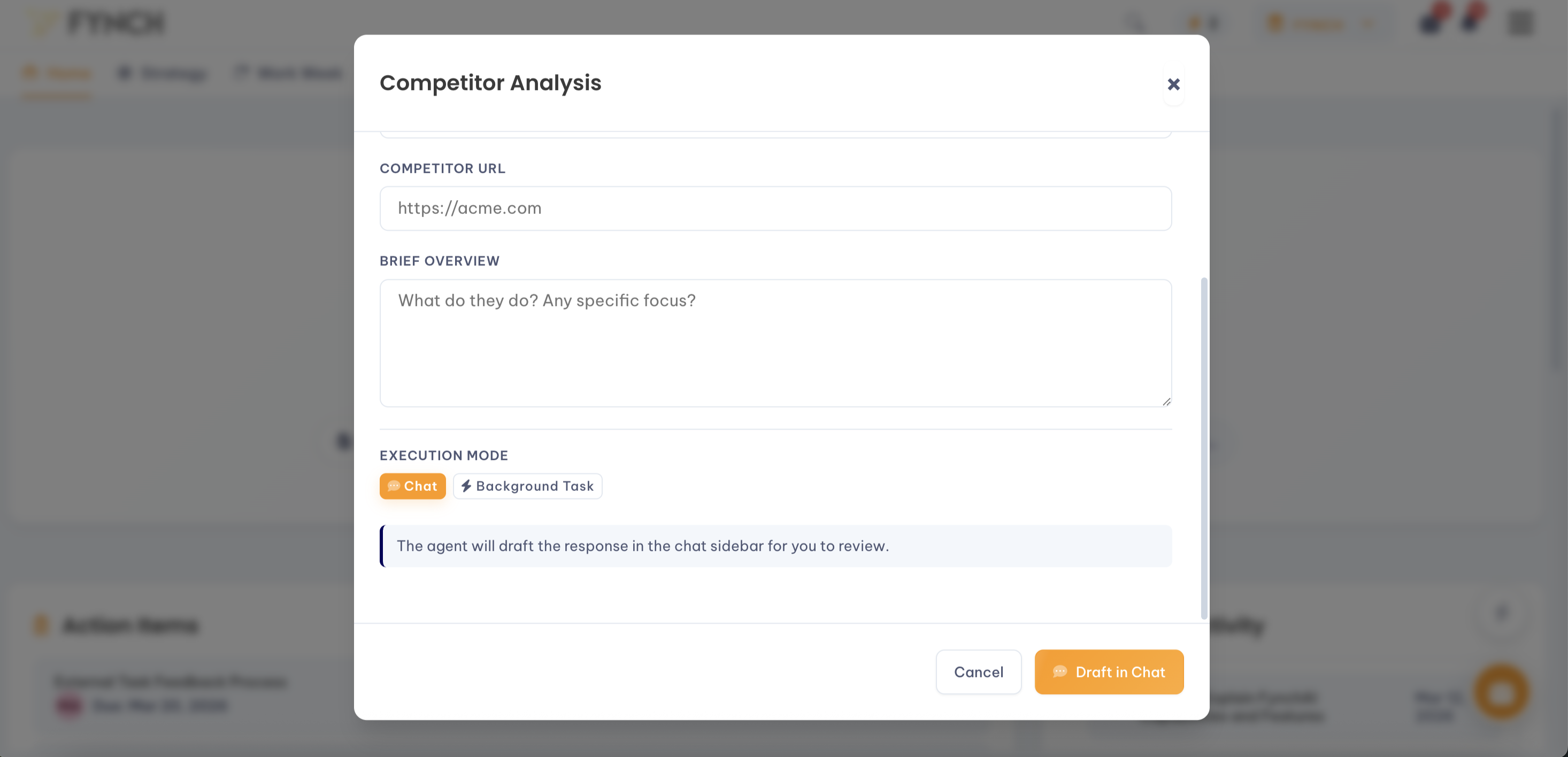
Select any Quick Actions from the Workspace homepage and opt for the "Chat" Execution Mode option at the bottom. The agent will draft the response in the chat sidebar for you to review.
Background Mode: Professional Execution
Background Mode is designed for complex, time-consuming, or high-volume tasks. Instead of waiting for a response in a chat window, you assign the work to your agent and continue with your day.
How it works: The agent creates a dedicated Task and processes the request in the background. Once the work is complete, it saves the result (usually as a Note, Brief, or Report) in your Strategy Library and notifies you.
When to use it:
Deep Research: Performing a comprehensive competitor audit or market analysis.
Bulk Processing: Drafting 20 product descriptions or researching a list of 50 URLs at once.
Technical Audits: Running full SEO or AEO visibility checks on your website.
How to access it:
Click "Run Task" on any item in your Task list.
Send a high-volume request via email (e.g., "Analyze these 10 attachments").
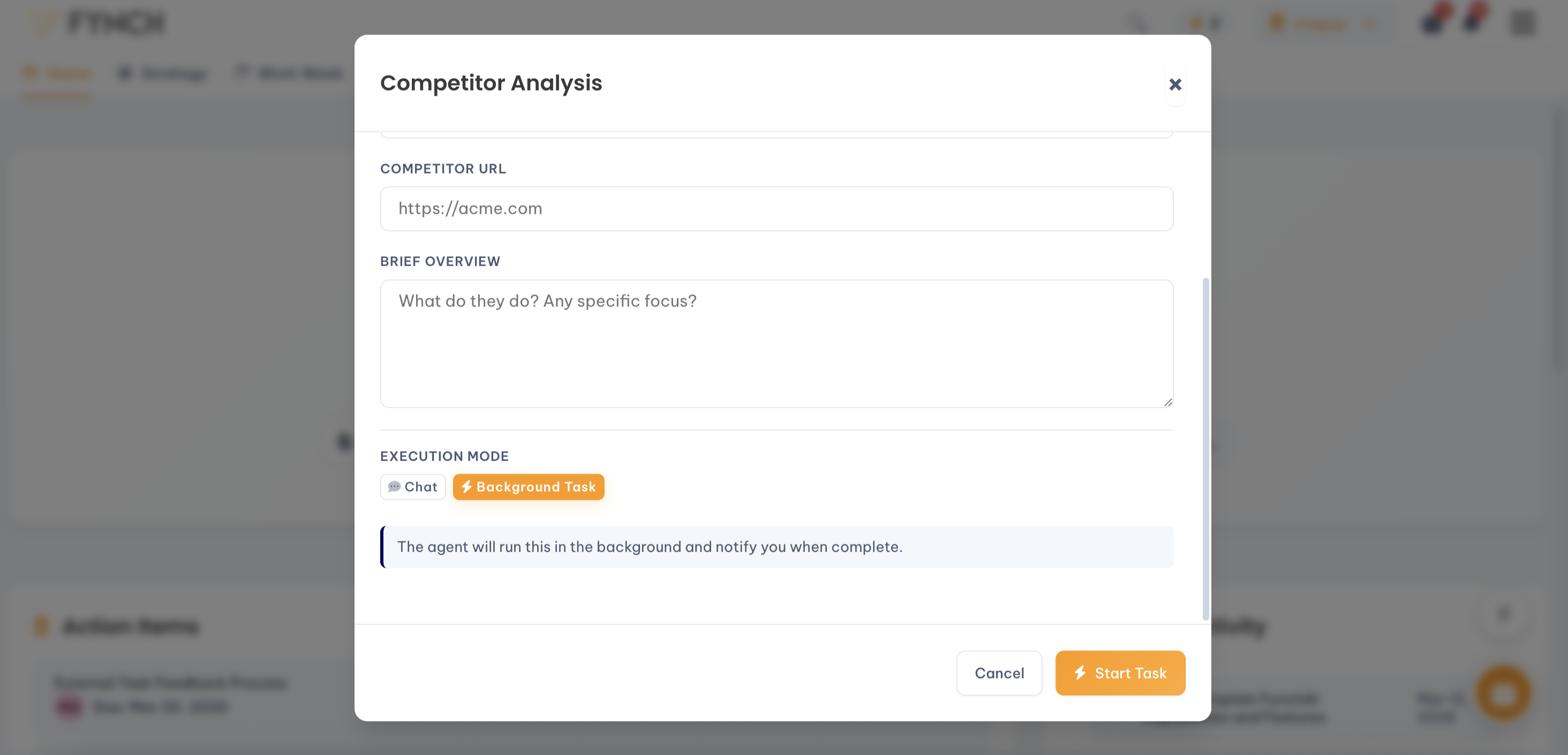
Trigger specific Quick Actions that are designed for background execution. Opt for the "Background Task" Execution Mode option at the bottom, and your agent will run this in the background and notify you when complete.
Why the Distinction Matters
Selecting the right mode is about Efficiency and Workflow Management:
No Waiting: Background Mode allows you to trigger multiple complex projects at once without being stuck in a chat interface. You can "set and forget" heavy tasks like website audits.
Context Preservation: While Chat is great for quick edits, Background Mode ensures that major work is saved as a permanent asset in your Strategy Library. This prevents important research or long-form content from getting lost in a long chat history.
Task Management: Background work is tracked in your Tasks and Projects views. This makes it easier to manage deadlines and see exactly what work your AI partner is currently handling for you.
Pro Tip: Switching Modes
If you are in a chat and you realize a request is more complex than expected (e.g., "Actually, can you research five competitors instead of one?"), you can ask your agent to "Move this to a background task." It will then create a task and notify you when the deep research is finished.