
Projects
How to Use Projects to Organize Campaigns
In FynchAI, a Project is a container that keeps your related marketing activities organized. While a single Task represents a specific action, a Project brings those actions together to achieve a larger goal (like launching a website, running a holiday promotion, or managing your monthly social media calendar).
Note: Using Projects and Tasks within the Workspace is Optional. These features are primarily how your agent organizes and tracks its work on your behalf. While we encourage you to engage with the project management framework to best collaborate with the agent, the platform is designed to be as hands-on or hands-off as you prefer.
Why Projects are Your Organization Hub
Managing multiple marketing streams can quickly become overwhelming. Projects provide the structure needed to stay focused and efficient.
Group Related Work: Keep all emails, social posts, and research documents for a specific campaign in one dedicated space.
Shared Context: When your agent works on a task within a project, it has immediate access to the goals and background information of that entire initiative.
Clear Progress Tracking: See at a glance how many tasks are completed and what still needs to be done to reach your campaign milestone.
Simplified Collaboration: If you are working with a team or an agency, projects ensure everyone is looking at the same set of objectives and assets.
How to Create and Manage Projects
You can manage projects directly in the Projects view of your Workspace or simply ask your agent to set one up (or edit an existing one) for you.
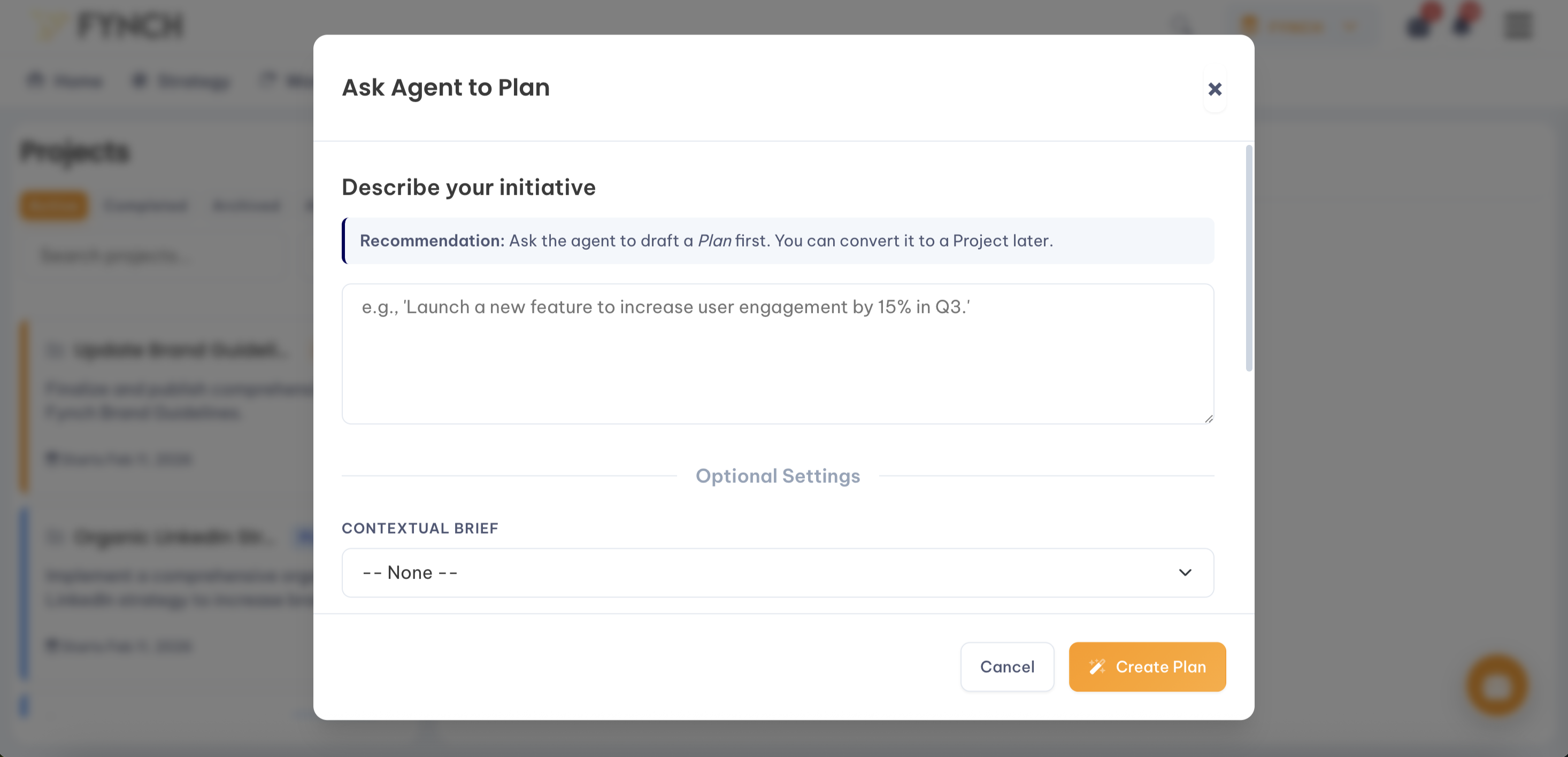
1. Create a Project: You can create Projects manually, ask your agent to guide you through the setup, or launch a Project from any existing Marketing Plan.
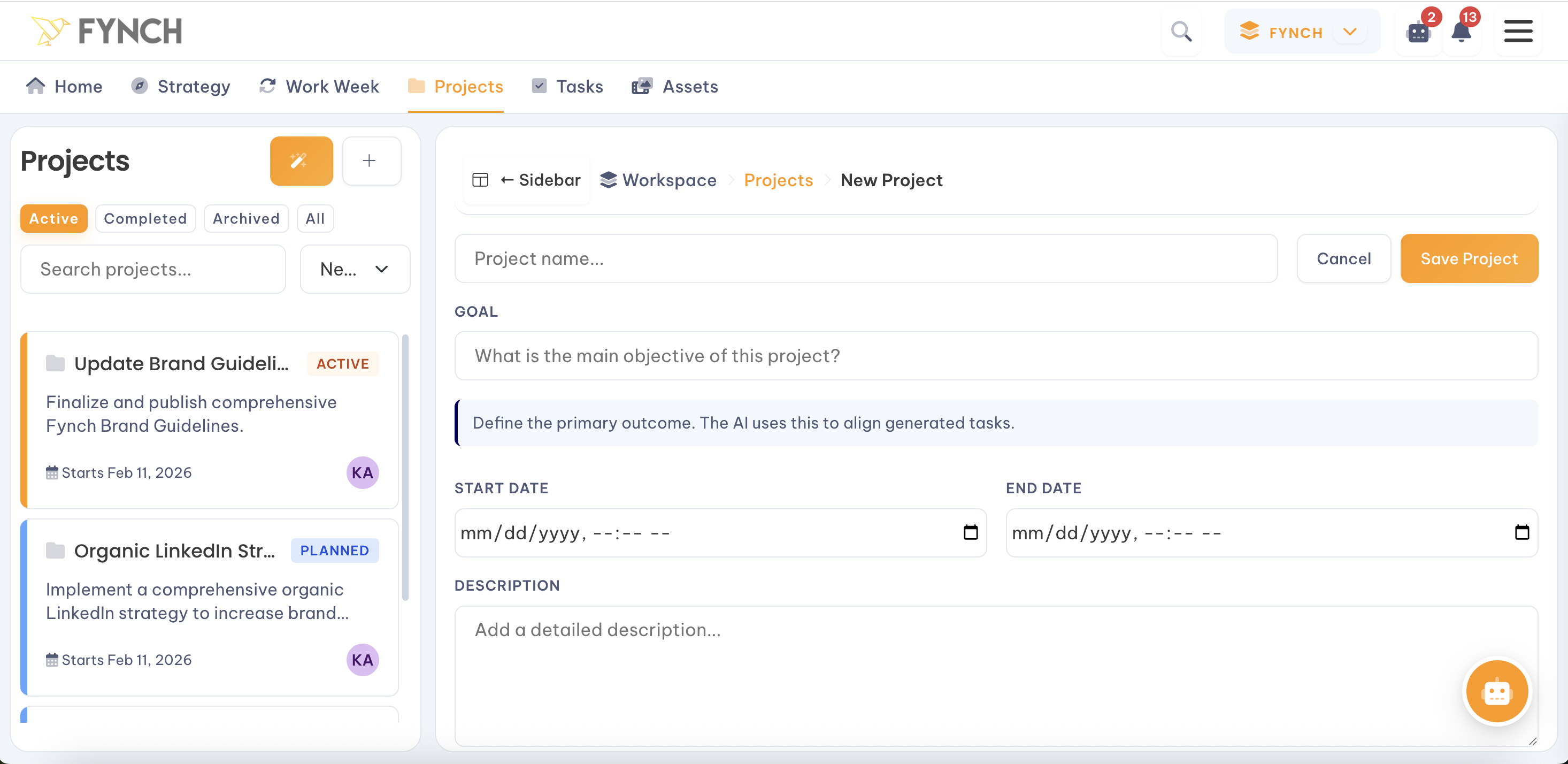
2. Add Context and Goals: Once a project is created, make sure you've added a goal and a brief description. You can also link a Project to an existing Marketing Plan (if you didn't already Launch the Project from a plan). This gives your agent the "why" behind the work.
"The goal of this project is to get 100 sign-ups for our upcoming webinar."
3. Assign Tasks to Projects: As you generate work and begin making progress on a Project, you can ask your agent to assign these actions & tasks to its relevant project.
"Draft an invitation email for the webinar and add it to the 'Webinar Series' project."
Your agent will also proactively create and associate new Tasks to a Project as you continue working together on related initiatives.